
SwimPrism watch app: user guide
SwimPrism is a pool-swimming app for Garmin watches (see the list of supported watches). It records your swim like the watch's own pool-swim mode and also stores the raw motion of your wrist (accelerometer and gyroscope) in the activity file. After the swim, the SwimPrism website turns that motion into stroke analysis: wrist detection, stroke classes and a 3D view of your forearm.
On the watch itself you get:
- data screens you can set up yourself,
- interval alerts (by distance or time),
- a Pacer (send-off timer or target pace),
- drill logging,
- stroke feedback after each swim interval.
Contents
- Buttons
- Start screen
- Settings
- Swimming: intervals and rest
- After each interval: summary and stroke feedback
- Rest pages
- Pacer
- Interval alert
- Drills
- Pause, save, discard
- End-of-swim summary
- Getting the swim to the website
- Reference: data fields
- Reference: sounds and vibrations
- Tips and limits
Buttons
SwimPrism uses only the five buttons. The touchscreen is ignored: wet screens produce false taps.
| Button | Where | What it does |
|---|---|---|
| START | right, top | Start the activity · pause it · choose in a menu · on the Pacer page: play / stop the pacer |
| BACK | right, bottom | Start or end an interval while recording · leave a menu |
| UP | left, middle | Previous page at rest · in menus: up · hold on the Pacer page: Pacer settings |
| DOWN | left, bottom | Next page at rest · in menus: down |
| LIGHT | left, top | The watch's own light / controls (not used by SwimPrism) |
The app draws coloured marks by the buttons that matter on each screen. Green means "press here to start", red means "press here to stop", and grey means a menu.
Start screen
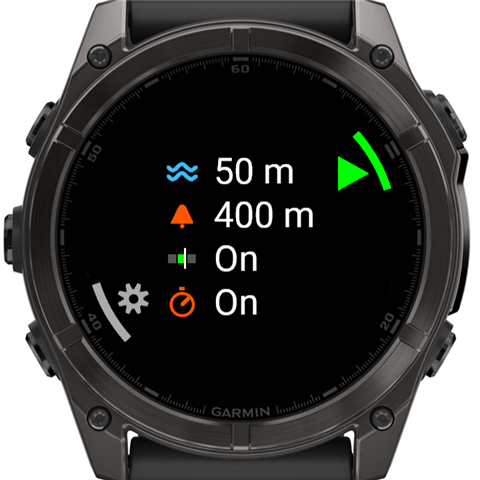
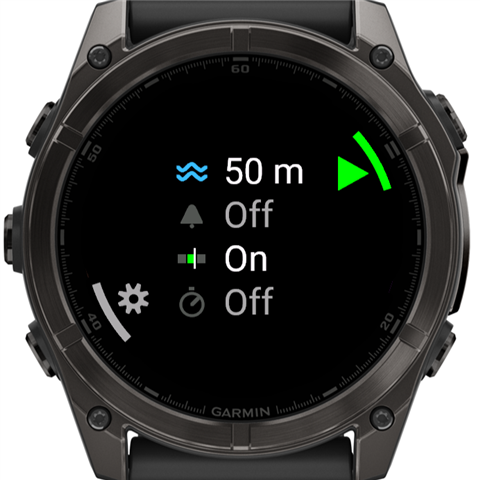
Open SwimPrism from the watch's app list. The start screen shows the four settings that shape the swim:
| Icon | Setting | Example |
|---|---|---|
| Two waves (blue) | Pool length | 50 m |
| Bell (orange) | Interval alert | 400 m, 3:00 or Off |
| Feedback bar (green) | Stroke feedback after each interval | On / Off |
| Stopwatch (orange) | Pacer page during the activity | On / Off |
An icon is in colour when the feature is on and dark grey when it is off (second picture: alert and pacer off).
- START (green play mark) starts the activity.
- UP or DOWN (grey cog by DOWN) opens the settings.
- BACK leaves the app.
Settings
Settings can only be changed on the start screen, before the activity starts. The Pacer's own values (mode, times) are the exception: you change those during the activity, on the Pacer page. Every change is saved immediately and kept for the next swim.
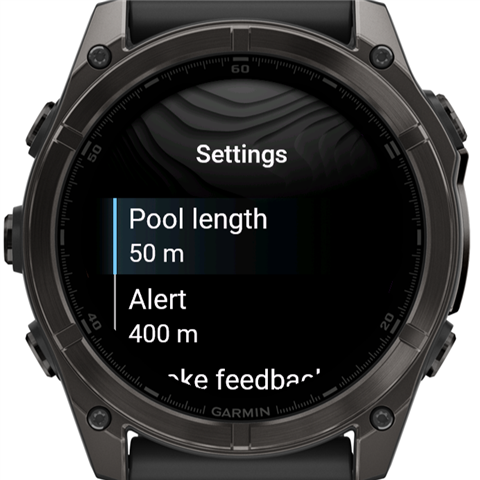
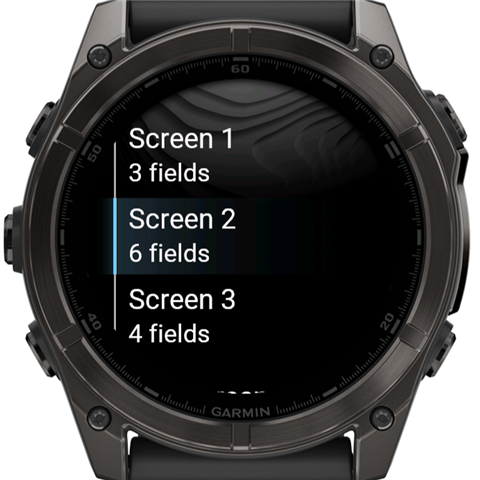
The main menu lists, top to bottom:
- Pool length
- Alert
- Stroke feedback
- Pacer
- Screen 1 … Screen 5: your data screens
- Add screen
Use UP / DOWN to move, START to choose and BACK to go back.
Pool length
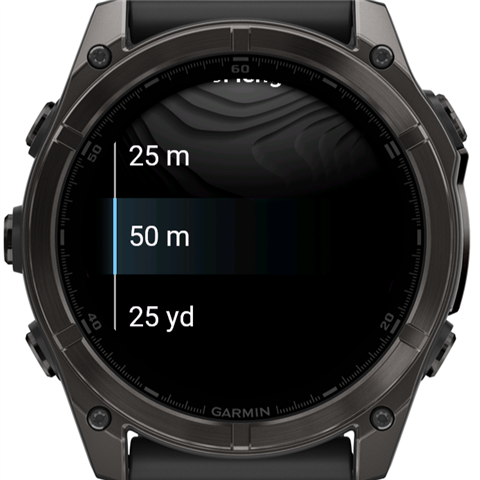
Choose 25 m, 50 m, 25 yd or 50 yd. It sets the length used for distance and pace, and the units (metres or yards) on every screen.
Alert
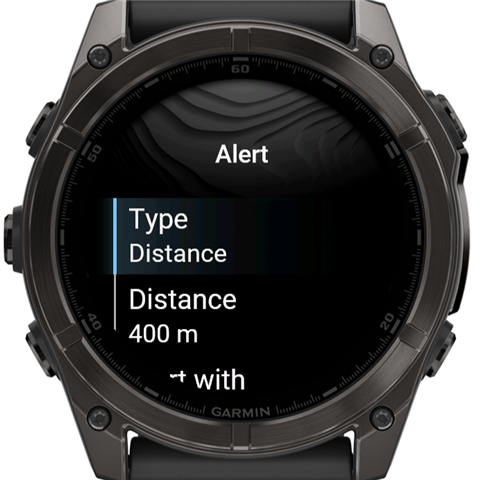
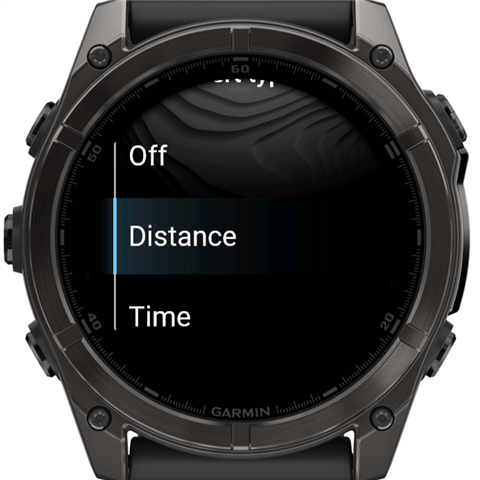
- Type: Off, Distance or Time. Choosing Distance or Time goes straight on to its value.
- Distance: a whole number of pool lengths, at least 2 lengths and at most 5000.
- Time: minutes and seconds, up to 99:59.
- Alert with: Beeps, Vibration, or Beeps + vibration. The watch plays the chosen style once when you pick it.
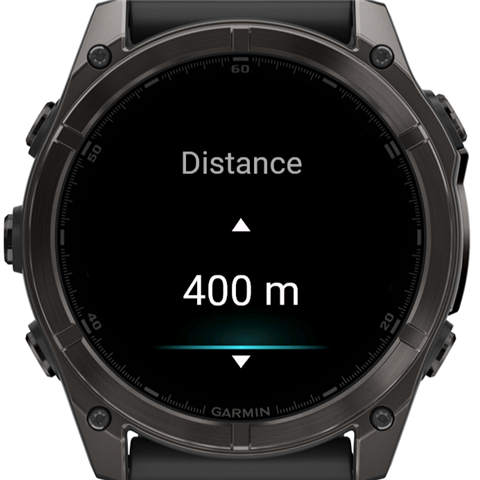
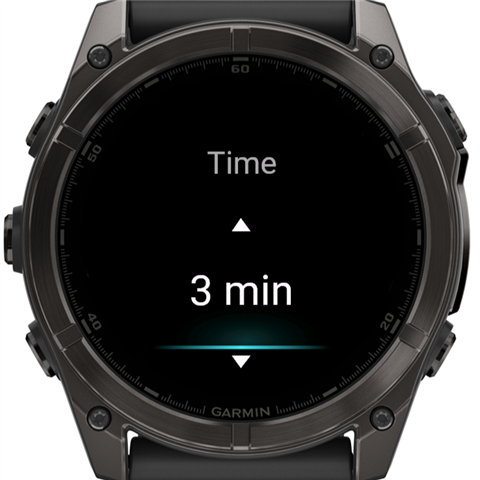
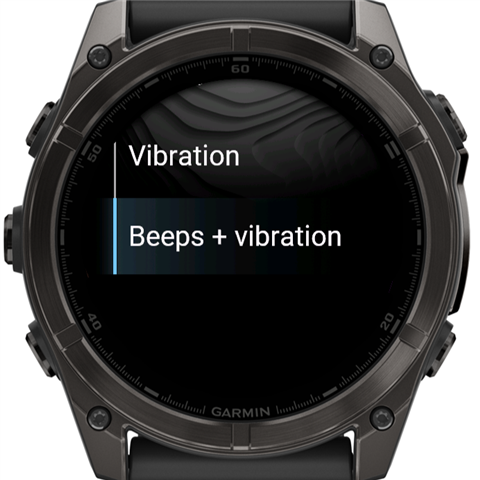
On the pickers, UP / DOWN change the value and START confirms. The time picker has a minutes column and a seconds column: START moves from one to the next.
See Interval alert for when the alert sounds.
Stroke feedback on/off
Choosing it switches it between On and Off without opening anything. When it is on, the watch analyses your strokes after each swim interval and shows two feedback pages (see stroke feedback). It is on by default.
Pacer on/off
Choosing it switches the Pacer page between On and Off. It is off by default. The mode and times are set on the Pacer page itself (see Pacer).
Data screens
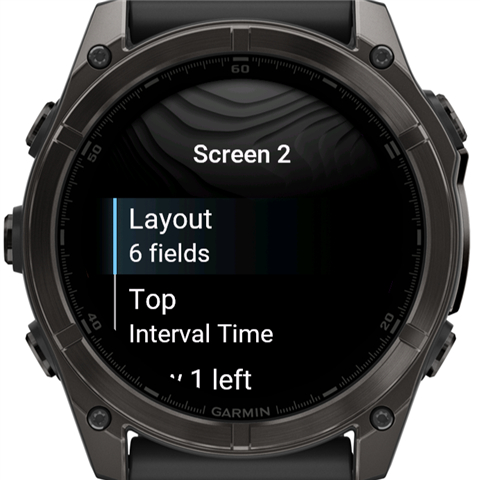
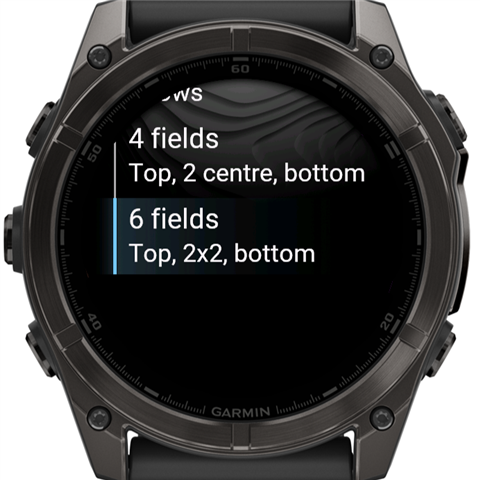
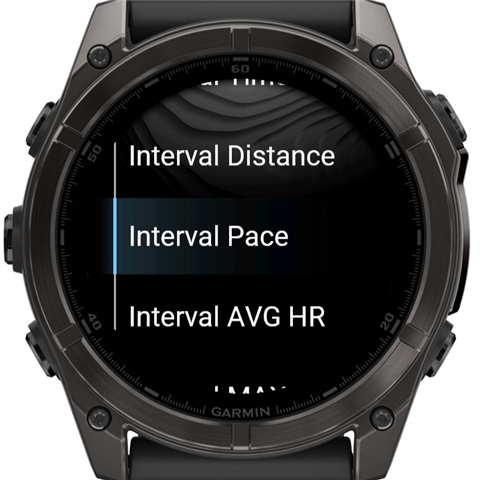
You can have 1 to 5 data screens. You page through them at rest. Choose Screen N to edit one:
- Layout:
- 3 fields: three rows.
- 4 fields: top, two in the centre, bottom.
- 6 fields: top, 2 x 2, bottom.
Switching layouts keeps the fields of slots that still exist.
- One row per slot (Top, Middle, Row 1 left, …). Choose one to pick its data field from the list. See Reference: data fields.
- Remove screen: only shown while you have more than one screen.
Add screen (at the end of the main menu) adds a new 3-field screen: Total Time, Total Distance, Total Lengths. You can then edit it.
The defaults are:
- Screen 1 (3 fields): Total Time, Total Distance, Total Lengths.
- Screen 2 (6 fields): Interval Time, Interval Distance, Interval Pace, Interval AVG HR, Interval MAX HR, Rest Time.
Swimming: intervals and rest
A SwimPrism swim is a series of intervals with rests between them. BACK starts an interval and BACK ends it. You never need to look at the watch to do this, so press BACK when you push off and again when you stop at the wall.
Before the first interval
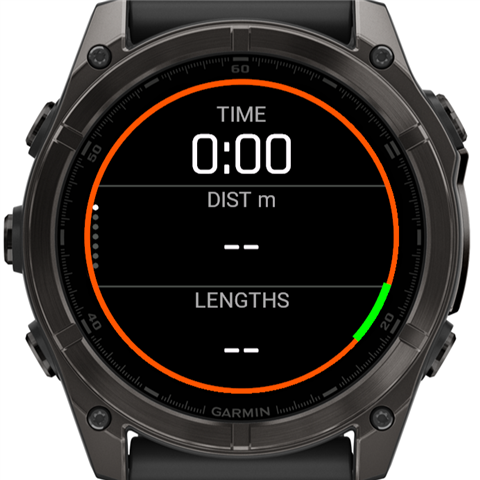
After START the watch buzzes and shows the rest screens. The timer stays at 0:00: nothing is recorded until your first interval starts. That way, the minutes spent at the poolside don't count. Press BACK when you push off.
The status ring and the BACK mark
The ring around the screen tells you the state at a glance:
| Ring | Meaning |
|---|---|
| Green | Swim interval running |
| Blue | Drill running |
| Orange | Rest |
| Orange arc on a grey track | Rest, with the Pacer counting down to the next start (see Pacer) |
The mark by BACK is green at rest (press to start an interval) and red during an interval (press to end it).
During a swim interval
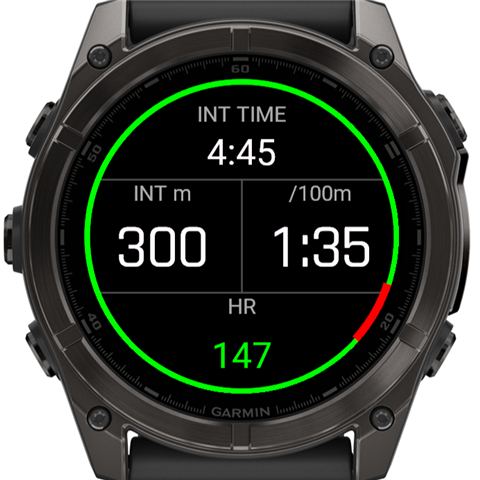
During an interval the screen is fixed (UP / DOWN do nothing), so you can't change pages by accident. It shows:
- INT TIME: interval time.
- INT m: interval distance.
- /100m: interval pace.
- HR: current heart rate, in the colour of your heart rate zone.
The distance grows by one pool length each time a length is finished. The watch detects turns from your wrist motion: the glide after each push-off.
Press BACK at the wall to end the interval. The watch buzzes.
After each interval: summary and stroke feedback
Interval summary
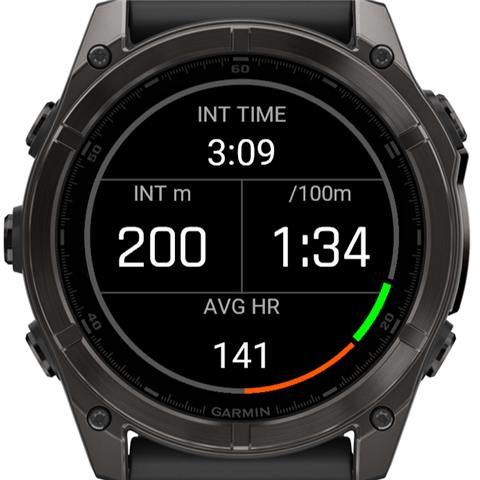
For 5 seconds after BACK, the watch shows the finished interval: time, distance, pace and average heart rate.
Stroke feedback
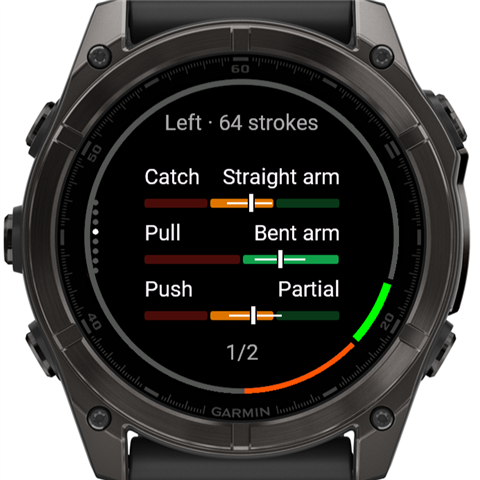
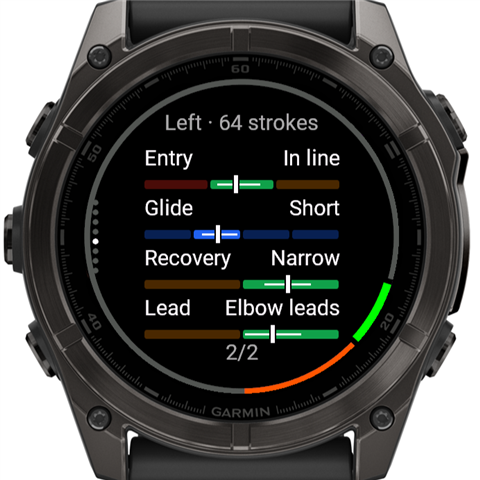
If stroke feedback is on, the summary is followed by two feedback pages, then the first data screen. Each one stays for 5 seconds. Pressing any button stops this automatic paging and leaves you on the current page.
The top line shows the wrist the watch was worn on (Left or Right) and the number of strokes analysed. The wrist is detected from the motion, so you can swap wrists between intervals. The bottom line shows the page number. The two pages show seven parts of the freestyle stroke:
| Page | Part | Classes, left to right |
|---|---|---|
| 1 | Catch | Dropped elbow · Straight arm · Early vertical |
| 1 | Pull | Deep · Bent arm |
| 1 | Push | Early exit · Partial · Full |
| 2 | Entry | Crossing · In line · Wide |
| 2 | Glide | None · Short · Medium · Long |
| 2 | Recovery | Wide swing · Narrow |
| 2 | Lead | Hand leads · Elbow leads |
Where a part has a better and a worse way, the better one is on the right. Entry has faults on both sides (crossing and too wide), with the good class in the middle.
Entry and glide are measured from the moment your hand enters the water: the watch feels the small jolt when the hand hits the surface. Recovery runs from the hand leaving the water to the next entry.
How to read a bar:
- Segments: each segment is one class. Green = good, amber = in between, red = fault, blue = neutral (glide length is a matter of style, not right or wrong).
- Bright segment and right-hand name: the class of your typical (median) stroke. The other segments are dimmed.
- White tick: where your median stroke falls.
- White line: the middle half of your strokes. A short line means your strokes were consistent; a long one means they varied.
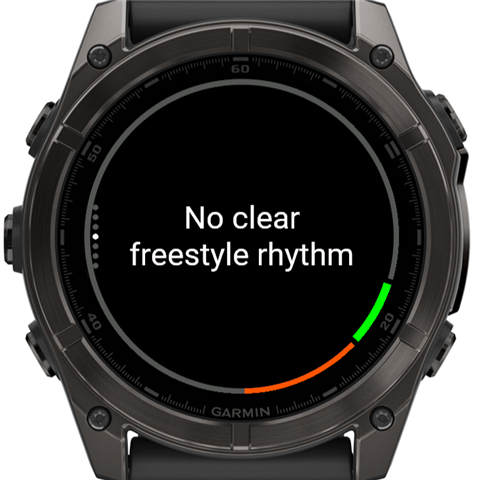
The analysis needs at least 8 strokes with a clear freestyle rhythm. Instead of the bars, you may see one of these messages, on a single page without a page number:
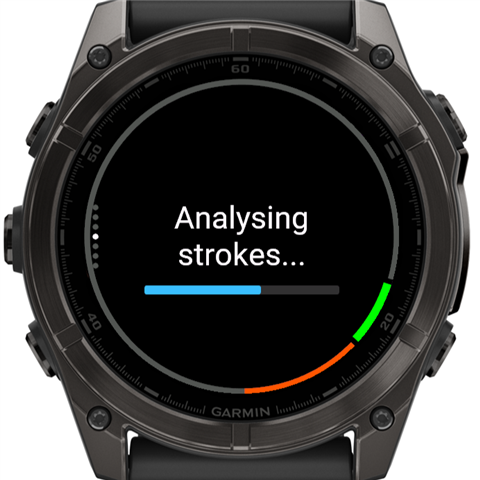
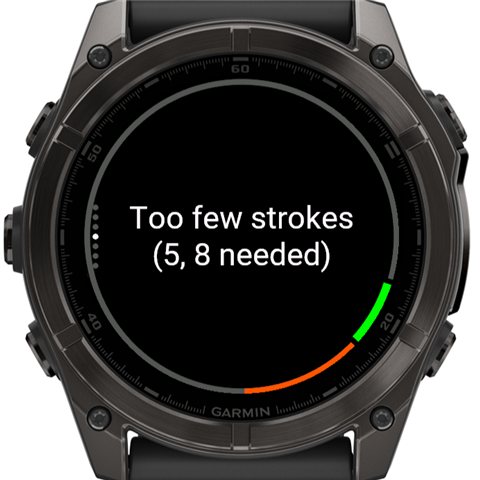
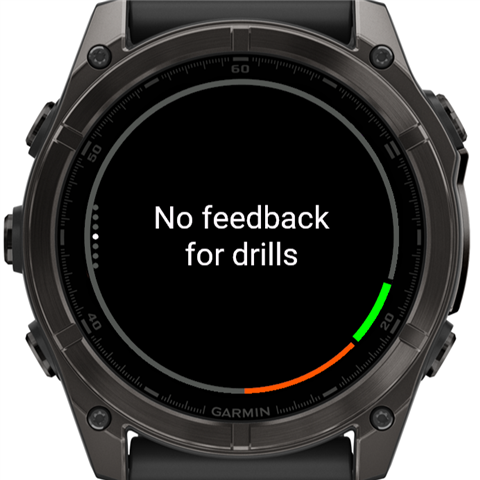
- Analysing strokes…: the watch analyses your strokes while you swim, so after BACK only the last few strokes are left, and the result is usually ready during the interval summary. After a very long interval it can take a little longer (about 20 seconds after 40 minutes); the bar under the text shows how far it has got. The 5 seconds count from when the result appears.
- No clear freestyle rhythm: for example backstroke, breaststroke, kick or a mostly stationary interval.
- Too few strokes (N, 8 needed): the interval was too short.
- No feedback for drills: shown from the start of a drill until the next swim interval has been analysed. The watch records no stroke motion during drills, so the feedback of the swim before it is cleared rather than shown as if it were the drill's. After a drill the watch does not open the feedback pages by itself.
With "No clear freestyle rhythm" or "Too few strokes" the watch goes straight to the first data screen after 5 seconds.
Intervals of any length are analysed in full. Only if the watch runs short of memory is the analysis limited to the first part of the interval; the bottom line then reads "first X min · 1/2". The activity file and the website always keep the whole interval.
Rest pages
At rest, UP / DOWN page through these, in this order:
- your data screens,
- the stroke feedback pages (if stroke feedback is on): two with a result, one with a message such as "Too few strokes",
- the Pacer page (if the Pacer is on),
- the Drill Log,
- a diagnostics page.
The dots on the left show which page you are on.
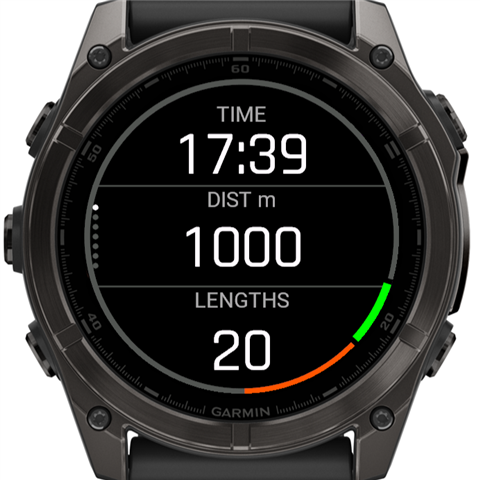
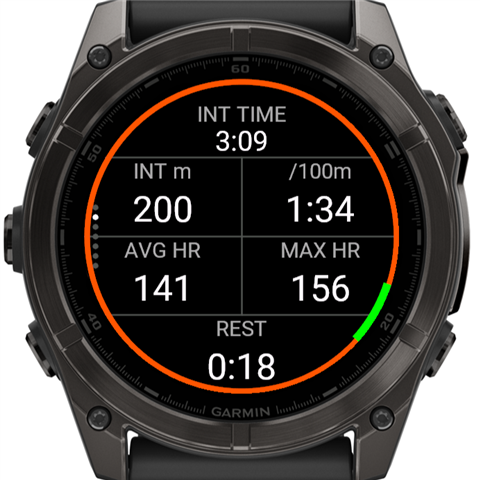
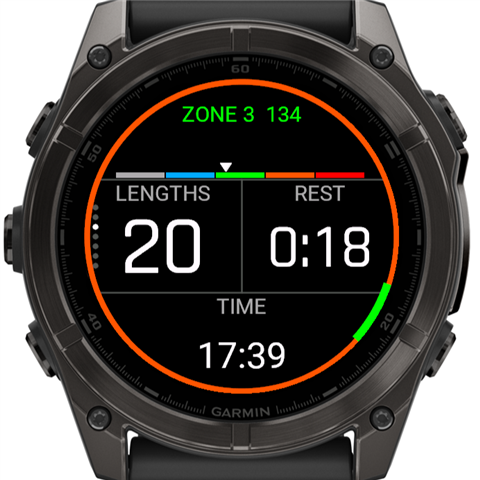
From left to right:
- Screen 1 (the default 3-field screen), with the Pacer counting down to the next start.
- Screen 2 (the default 6-field screen): the last interval and the current rest.
- A 4-field screen with the HR gauge: the current heart rate on a five-zone bar, with the zone number in the zone's colour.
At rest, the interval fields keep showing the interval that just ended.
The diagnostics page (last) shows sensor counters for troubleshooting. You can ignore it.
Pacer
The Pacer gives you a signal while you swim, in one of two modes:
- Start on: a send-off clock. Example: "200 m on 4:00". The watch signals every 4:00, counted from the start of your last interval. That's when to push off again. During the rest the ring shows the time left.
- Pace: a target pace. Example: "1:30 per 100 m, signal every 25 m". The watch signals every 22.5 s during a swim interval: that's when you should be passing each 25 m mark.
Turn the Pacer page on in Settings. Then, during the activity, at rest, page to it:
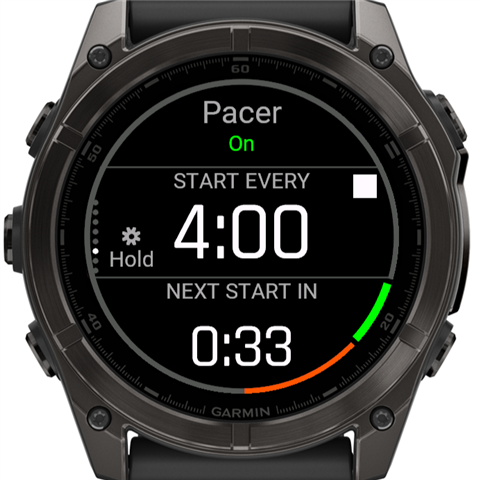
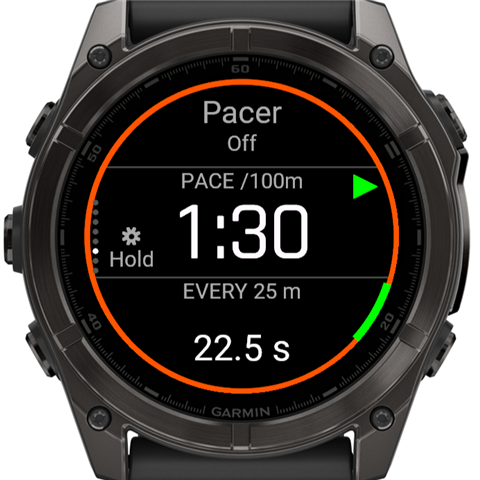
- Under "Pacer" is its state: On (green, running) or Off (stopped).
- START plays or stops the Pacer. The mark by START shows what a press will do: a green triangle = play, a white square = stop. On this page START does not pause the activity.
- Hold UP (the cog with "Hold") opens the Pacer settings.
- Start on shows the period and NEXT START IN (the countdown).
- Pace shows the target pace and the time between signals (here every 25 m = 22.5 s).
Every activity starts with the Pacer stopped. Press START on its page to play it.
Each round counts from an interval start. After you play the Pacer, it waits for the next interval start (BACK) and counts from there. Any change waits for the next interval start again: play, stop, or a new mode, time or spacing. So a change never carries on half a round.
Pacer settings (hold UP on the Pacer page)
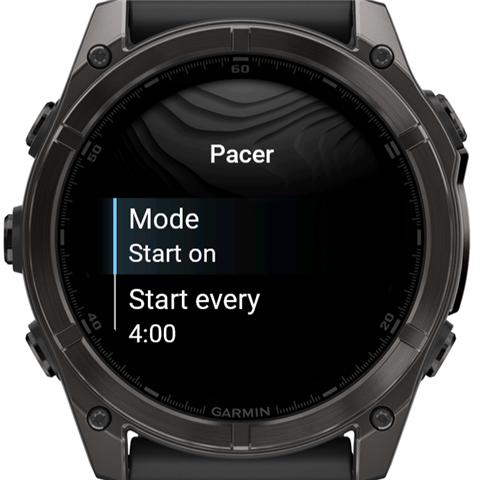
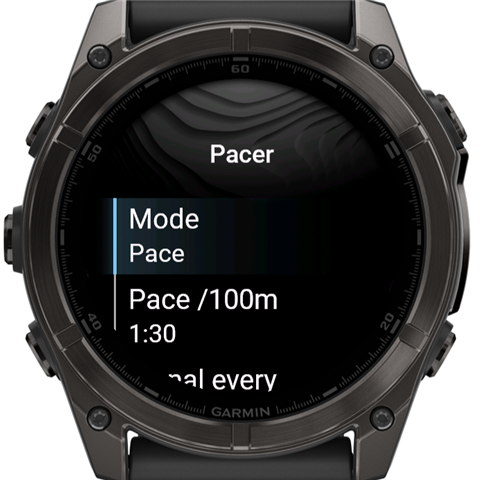
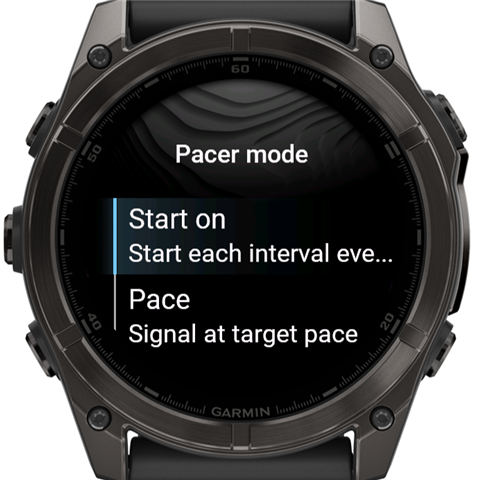
- Mode: Start on or Pace. Choosing a mode goes straight on to its time.
- Start every (Start on): minutes and seconds in 5-second steps, from 0:10 to 29:55.
- Pace /100m (Pace): minutes and seconds per 100 m (or 100 yd), from 0:30 to 9:59.
- Signal every (Pace): 100, 50 or 25 m (or yd). The time between signals is shown next to each option.
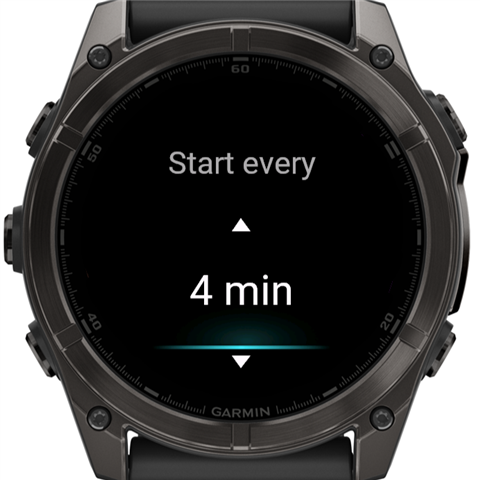
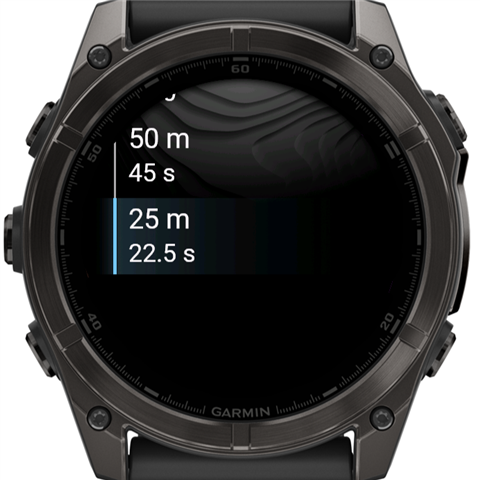
BACK closes the menu and returns to the Pacer page.
When the Pacer signals
| Mode | When | Signal |
|---|---|---|
| Start on | Every period from the last interval start (swim or drill), through the swim and the rest | Interval sound + 2 vibration pulses |
| Pace | Every spacing from the start of a swim interval. Not at rest, not during drills | Short beep + 1 pulse |
The Pacer pulses are long (0.6 s at full strength), so you can feel them in the water. The Pacer signals are different from the interval alert, which gives 3 pulses.
Interval alert
Set the alert on the start screen (Settings → Alert). It sounds during each interval, and its count starts again with every interval:
- Distance: at every multiple of the set distance. It sounds when the last length of each multiple starts, so you can count it in. Example: a 400 m alert in a 50 m pool sounds at 350 m, 750 m, … Not during drills.
- Time: at every multiple of the set time, during swims and drills.
The signal is the watch's distance or time alert sound and/or 3 strong vibration pulses, as chosen in Alert with.
Drills
Drills are intervals whose distance you enter yourself, for kick, one-arm or other drill work.
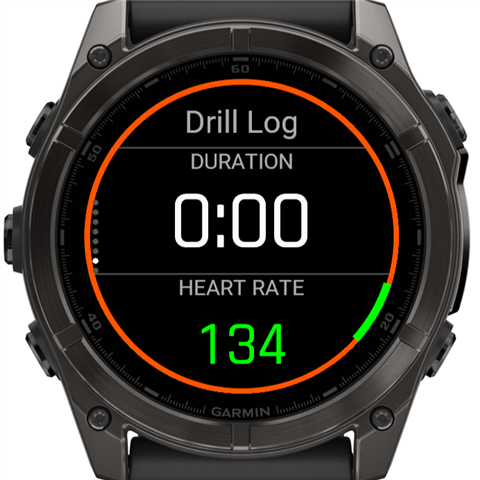
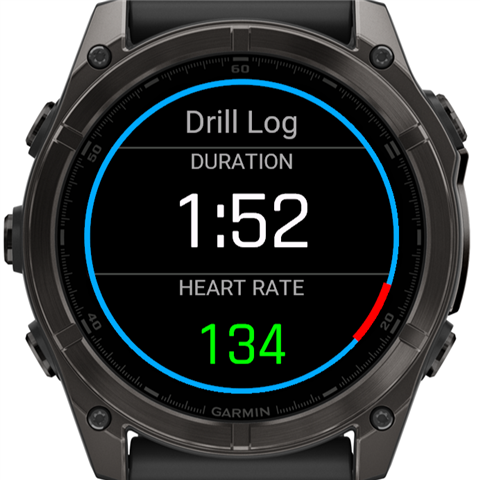
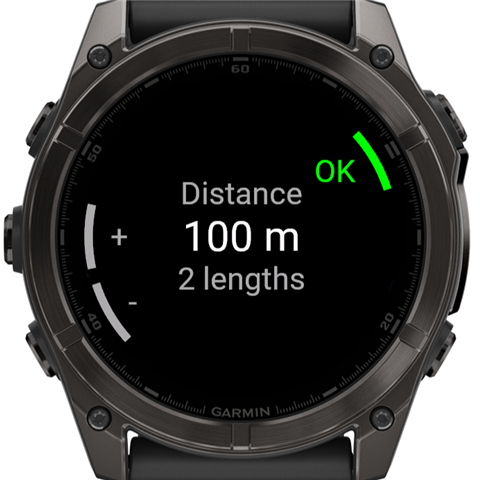
- At rest, page to Drill Log.
- Press BACK on that page: the interval starts as a drill. The ring turns blue and the page shows the drill time and heart rate.
- Press BACK to end it. The Distance picker opens with the watch's suggested number of lengths.
- Adjust it with UP (+) / DOWN (−) and confirm with START (OK).
Your motion is not stored during drills, and drills get no stroke feedback. The Pacer's Start on mode does count from a drill start.
Garmin Connect shows the watch's own lengths for drills, not the distance you entered. The watch counts lengths by itself, and Garmin Connect (and apps that copy from it) always shows that count. For drills it is often wrong: kick and one-arm work is hard to detect, so laps and distance there may differ from what you swam. The SwimPrism website reads the distance you entered, so its report is correct.
Pause, save, discard
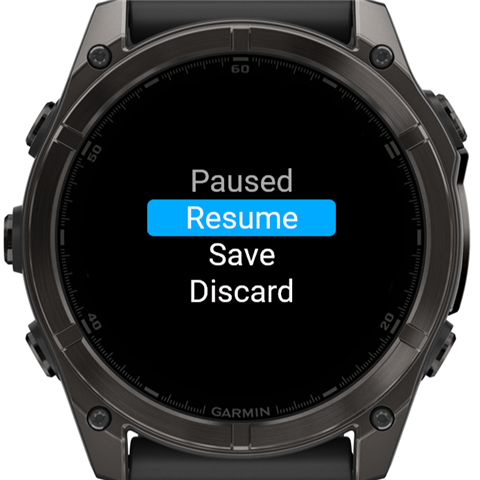
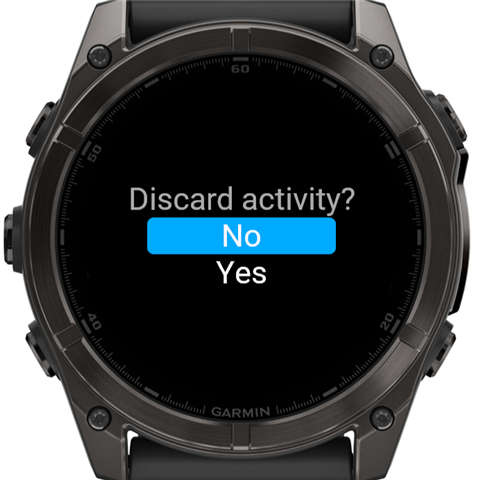
Press START during the activity (anywhere but the Pacer page) to pause. The timer stops and the watch buzzes. Then choose with UP / DOWN and START:
- Resume: carry on.
- Save: save the activity and show the summary. If a drill was still running, the watch first asks for its distance.
- Discard: asks Discard activity? The cursor starts on No, so a stray press can't throw a swim away. BACK also returns to the pause menu.
If you never started an interval, Save has nothing to save and the activity is discarded. If the app is closed while recording, whatever was recorded is saved.
End-of-swim summary
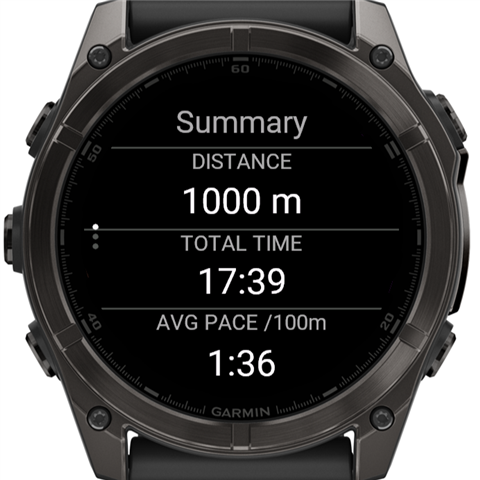
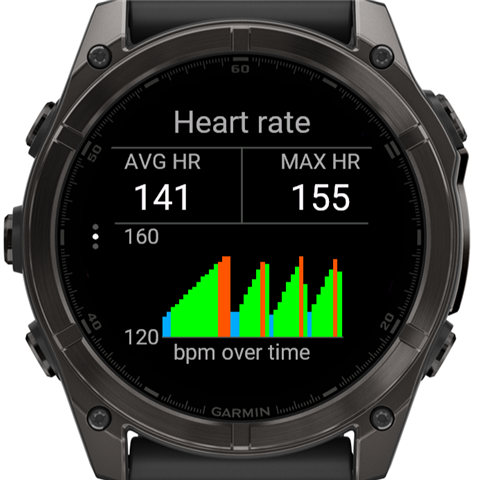
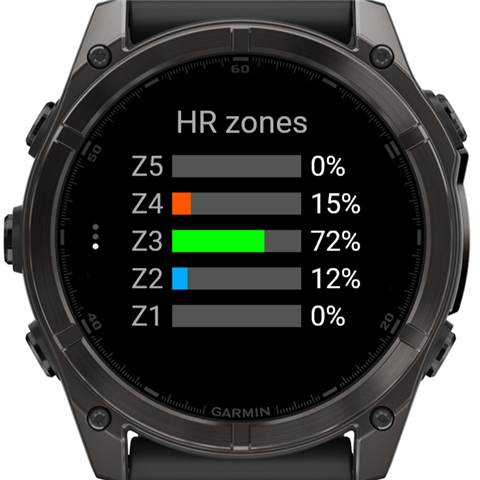
After Save, three pages (UP / DOWN):
- Summary: total distance, total time and average pace. The pace counts swim and drill time only, so rests don't slow it down.
- Heart rate: average and maximum, and a chart over the whole activity, coloured by zone.
- HR zones: the share of time in each of your swim heart rate zones (from your Garmin user profile).
START or BACK closes the app. The activity is now in the watch's activity history and syncs to Garmin Connect like any other.
Getting the swim to the website
The stroke analysis lives on the SwimPrism website. Get the activity file there in one of these ways:
- Automatic import from Garmin Connect (once your profile page offers it): connect Garmin Connect on your SwimPrism profile page (Garmin Connect card). Every pool swim you record from then on arrives a few minutes after your watch syncs with Garmin Connect.
- Automatic import from intervals.icu: connect intervals.icu on your SwimPrism profile page (intervals.icu card). SwimPrism then imports new pool swims every 15 minutes, once Garmin Connect has synced them to intervals.icu.
- Upload from Garmin Connect: open the activity, use Export Original, and upload the
.zipcontents (the.fitfile) on the SwimPrism website. - Upload over USB: connect the watch to a computer and upload the newest
.fitfile fromGARMIN/Activity.
All of these keep the motion data that the analysis needs.
Reference: data fields
| Field | Label on screen | Meaning |
|---|---|---|
| Total Time | TIME | Activity time since the first interval started (rests included, pauses not) |
| Total Distance | DIST m | Distance of all intervals, drills as entered |
| Total Lengths | LENGTHS | Total distance in pool lengths |
| Rest Time | REST | Time of the current rest |
| Interval Time | INT TIME | Time of the current (or, at rest, the last) interval |
| Interval Distance | INT m | Distance of that interval |
| Interval Pace | /100m | Its average pace per 100 m (yd) |
| Interval AVG HR | AVG HR | Its average heart rate |
| Interval MAX HR | MAX HR | Its highest heart rate |
| HR Gauge | ZONE n | Current heart rate on a five-zone bar |
| Heart Rate | HR | Current heart rate, in the zone colour |
| Last Length Strokes | STROKES | Strokes of the last length * |
| INT AVG strokes/length | INT STR/LEN | Average strokes per length in the interval * |
| AVG SWOLF | AVG SWOLF | Average SWOLF (time + strokes per length) of the activity * |
| Interval SWOLF | INT SWOLF | Average SWOLF of the interval * |
* These come from the watch's own swim metrics and show -- when the watch reports none. The watch doesn't always give these to a Connect IQ app. The website analyses your strokes from the motion data instead.
Reference: sounds and vibrations
| Event | Sound | Vibration |
|---|---|---|
| Activity start, pause, resume; interval start and end | none | 1 short buzz |
| Interval alert | Watch's distance / time alert sound (if chosen) | 3 strong pulses (if chosen) |
| Pacer, Start on | Watch's interval alert sound | 2 long pulses |
| Pacer, Pace mark | Short loud beep | 1 long pulse |
The sounds are the watch's built-in alert sounds, so the watch's own sound settings (alert tones on / off) apply.
Tips and limits
- Press BACK at every push-off and every stop. Intervals, rest, stroke feedback, the Pacer and the alerts all depend on it.
- Freestyle only, for now. Length detection and stroke feedback are tuned on freestyle. Other strokes and kick sets may miss lengths or show "No clear freestyle rhythm". Use a drill for kick sets and enter the distance.
- Wrist: either wrist works, and you can move the watch between intervals. Each interval's wrist is detected on its own.
- Length count: the watch counts lengths from the push-off glide. A very short glide, or stopping mid-length, can make it miss or add a length. The website shows each length and its time.
- Activity file size: the motion data makes SwimPrism activities larger than normal swims (16 samples per second).